
Creating a visually appealing and professional Google Form starts with understanding the correct header image size. While Google Forms automatically adjusts uploaded images, using the proper dimensions ensures clarity, avoids awkward cropping, and maintains brand consistency. Choosing the right size helps the header look sharp on desktops, tablets, and mobile devices.
TLDR: The recommended Google Form header image size is 1600 x 400 pixels, with a 4:1 aspect ratio. Images that do not follow this ratio may be cropped automatically. For best results, center important content and keep file sizes under 2 MB for optimal performance. Using high-resolution images ensures your header looks crisp across devices.
Understanding the Exact Google Form Header Dimensions
Google Forms uses a fixed aspect ratio for header images, meaning that images are resized and cropped to fit within a predefined layout. The ideal size is 1600 pixels wide by 400 pixels tall. This follows a 4:1 aspect ratio, which is critical for preventing distortion or trimming of key visual elements.
Although Google does not strictly require an image to be exactly 1600 x 400 pixels, any image uploaded will be scaled and cropped to fit this ratio. If the image is too tall or too square, Google automatically trims the top and bottom. If it is too narrow, the sides may be cropped.
Why 1600 x 400 pixels? This resolution ensures clarity on high-resolution screens while maintaining fast loading times. Since many users access forms from various devices, including mobile phones, using the recommended dimensions prevents blurry or stretched visuals.
Image not found in postmetaWhy the 4:1 Aspect Ratio Matters
The 4:1 aspect ratio is the key design constraint when creating a Google Form header. The aspect ratio refers to the proportional relationship between width and height. In this case:
- Width: 4 units
- Height: 1 unit
If a designer uploads an image sized 1200 x 300 pixels, it will still work because it follows the same 4:1 ratio. However, lower-resolution images may appear slightly blurry on larger or high-density screens.
Using incorrect proportions such as 1200 x 600 pixels (2:1 ratio) leads to automatic cropping. This may cut off:
- Logos placed near the edges
- Text near the top or bottom
- Important background details
To avoid issues, designers should always begin with a 4:1 canvas and position essential elements in the center.
Safe Area Guidelines for Google Form Headers
Even when using 1600 x 400 pixels, there is still a chance that slight variations in display could trim edges. Therefore, it is recommended to follow a “safe area” approach.
Best practice: Keep important content centered within approximately 1400 x 350 pixels of the image.
This means:
- Avoid placing text directly at the extreme top or bottom edges.
- Keep logos centered horizontally.
- Leave padding on all sides.
A clean, minimal header with centered elements typically produces the best visual result.
File Size and Format Recommendations
Beyond dimensions, file size and format also affect image quality and loading performance.
Maximum File Size
Google Forms supports images up to 2 MB. Staying under this limit ensures quick uploads and fast rendering.
Best File Formats
- JPG: Ideal for photographs and gradient backgrounds.
- PNG: Best for logos, transparency, and sharp text.
- GIF: Supported, but not recommended for headers.
For most use cases, a high-quality JPG exported at 70–80% compression provides the ideal balance between clarity and performance.
Image not found in postmetaHow to Create a Perfect Google Form Header
Designing a header image is straightforward when following a structured approach.
Step 1: Create a 1600 x 400 Pixel Canvas
Open a design tool such as Canva, Photoshop, Figma, or another editor. Set custom dimensions to 1600 pixels wide and 400 pixels tall.
Step 2: Design with the 4:1 Layout in Mind
Use the wide layout effectively. Because the banner is short vertically, designs should emphasize horizontal balance rather than vertical stacking.
Step 3: Center Important Elements
Logos, branding text, or headlines should remain in the middle. Decorative graphics can extend toward the edges.
Step 4: Export Properly
Export the image in JPG or PNG format, ensuring the file stays under 2 MB.
Step 5: Upload and Adjust
Within Google Forms:
- Click the Customize Theme icon (paint palette).
- Select Choose image under the Header section.
- Upload your image.
Google automatically crops to fit the format. If the preview cuts off important content, adjust your original design and re-upload.
Common Mistakes to Avoid
Many users unknowingly make design errors that affect the final appearance of their form.
Using Tall Images
Images with large vertical space are cropped dramatically. This leads to missing text or off-centered logos.
Placing Text Too Close to Edges
Because minor automatic cropping may occur, edge-aligned text is risky.
Uploading Low-Resolution Graphics
Small images stretched to fit 1600 pixels wide become blurry. Always start with a high-resolution file.
Ignoring Branding Consistency
Organizations often overlook the importance of matching header colors with brand themes. Consistency builds trust and professionalism.
How Header Images Appear on Different Devices
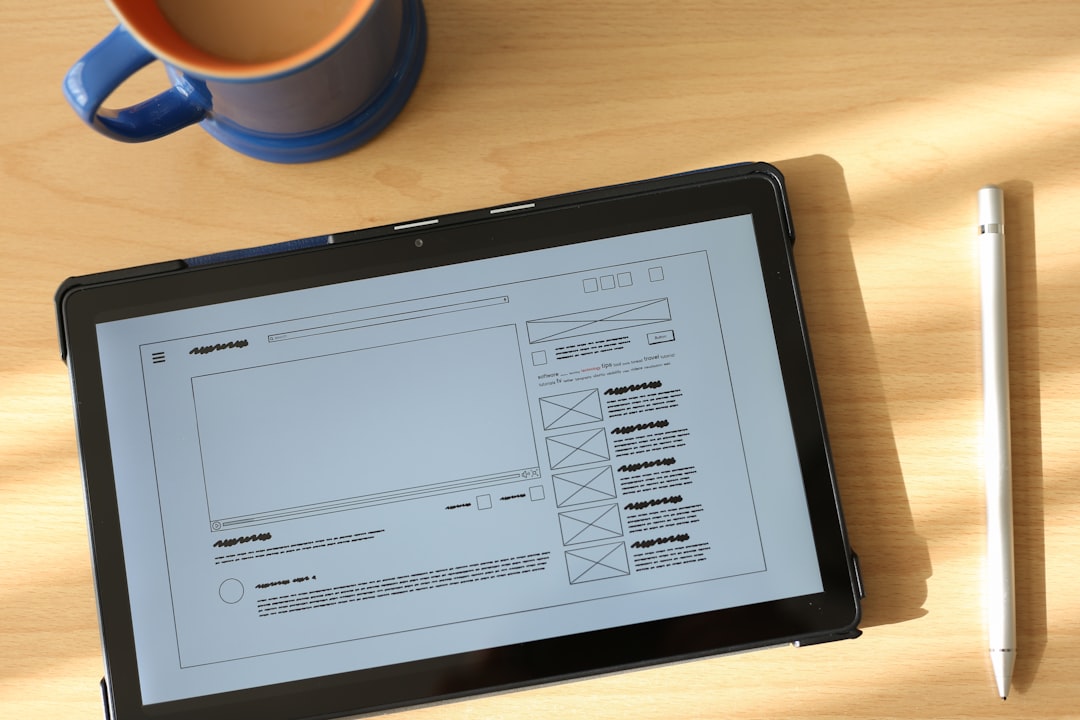
Google Forms is responsive, meaning it adjusts layout depending on screen size. Fortunately, the header maintains its 4:1 proportion across devices.
On desktop screens, the header appears fully expanded across the top. On mobile devices, it scales proportionally but takes up less visual space due to narrower screens.
This consistent scaling is why using a properly centered 1600 x 400 image ensures a professional appearance everywhere.
Design Tips for a Professional Look
- Use subtle gradients instead of busy backgrounds.
- Maintain high contrast between text and background.
- Apply brand colors consistently.
- Limit text since the form title appears below the header anyway.
- Test before publishing by previewing the form.
Because the header supports the form rather than dominating it, simplicity generally produces the strongest visual impact.
Do You Always Need a Custom Header?
Google Forms offers built-in theme images and color options. For casual surveys, these pre-designed headers may be sufficient. However, businesses, educators, and organizations benefit significantly from custom headers that strengthen identity and credibility.
A custom image sized exactly to 1600 x 400 pixels ensures:
- Professional presentation
- Brand alignment
- Visual engagement
- Improved user trust
FAQ: Google Form Header Image Size
1. What is the exact size for a Google Form header image?
The recommended size is 1600 x 400 pixels, using a 4:1 aspect ratio.
2. Can smaller images work?
Yes, as long as they maintain the 4:1 ratio, such as 1200 x 300 pixels. However, lower resolutions may appear less sharp.
3. What happens if I upload the wrong dimensions?
Google automatically crops and resizes the image to fit its 4:1 layout, which may trim important content.
4. What is the maximum file size allowed?
Header images must be under 2 MB.
5. What file format should be used?
JPG is ideal for photos, while PNG works best for graphics or logos with transparent backgrounds.
6. Does the header look different on mobile?
The aspect ratio remains the same, but the overall size scales down proportionally for smaller screens.
7. Where should text or logos be placed?
They should be centered within the design, leaving space around the edges to prevent cropping.
By following the exact 1600 x 400 pixel recommendation and respecting the 4:1 ratio, anyone can create a clean, professional Google Form header. Proper design and formatting ensure that surveys, registrations, and feedback forms leave a strong first impression while maintaining clarity across all devices.