


YouTube is one of the most popular video streaming platforms globally, delivering billions of hours of content daily. However, like any digital service, it is not immune to errors. One particularly troublesome issue that users face is Error 4. This error prevents videos from playing and leaves many users frustrated and searching for answers.
TL;DR (Too Long, Didn’t Read)
YouTube Error 4 usually relates to playback issues caused by poor internet connectivity, misconfigured settings, browser issues, or outdated software. To resolve it, users should check their internet connection, clear browser cache, disable extensions, update their software, or try alternative browsers. If none of these steps work, contacting YouTube support may be necessary. A methodical approach helps reduce downtime and improves overall streaming performance.
What Is YouTube Error 4?
YouTube Error 4 typically occurs when the platform is unable to fetch or deliver the video stream. The error message often reads: “An error occurred. Please try again later. (Playback ID: [random string])”. It is not exclusive to any one browser or device, making it appear more randomly than some other errors. The underlying issues usually relate to local software environments, browser errors, or network instability rather than server-side failures.
Common Causes of YouTube Error 4
Below are the most frequent causes that lead to this playback disruption:
- Corrupted cache or cookies in your browser
- Network connection issues or DNS misconfiguration
- Streaming quality conflicts or outdated video drivers
- Third-party browser extensions interfering with content playback
- Outdated browser or mobile app versions
Understanding these causes gives you a better foundation for resolving the problem effectively and permanently.
Step-by-Step Troubleshooting Guide
If you’re facing YouTube Error 4, these troubleshooting steps should help most users resolve the problem:
1. Check Internet Connection
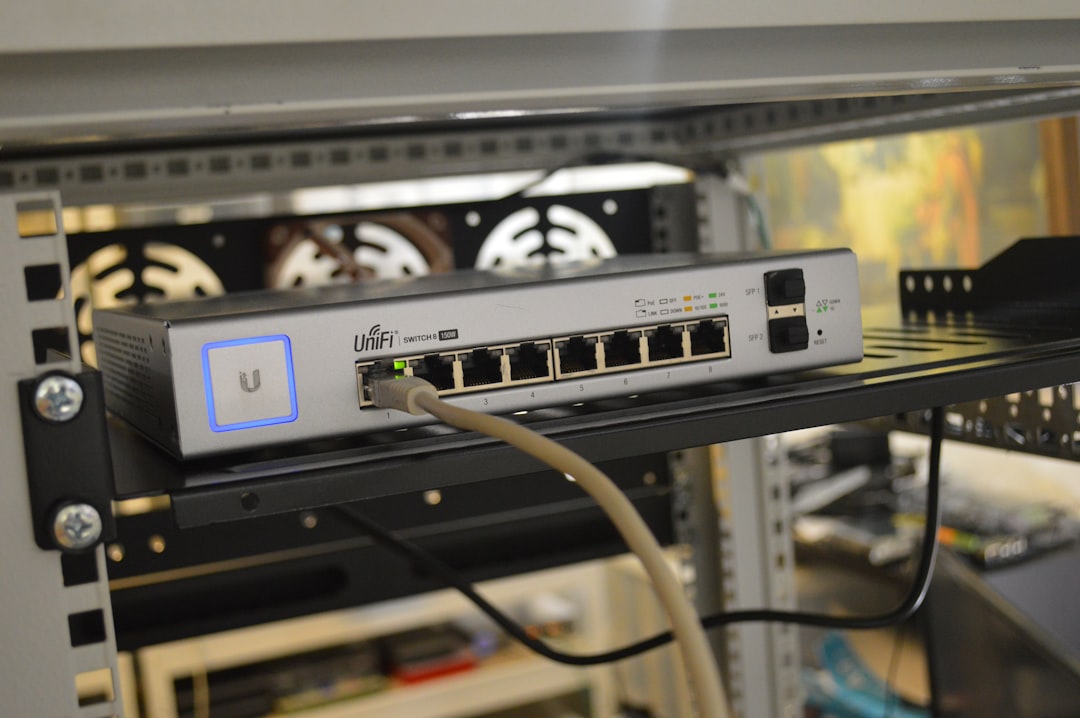
A weak or intermittent internet connection is one of the most common reasons for playback errors. Begin by ensuring your connection is stable:
- Test your internet speed using reliable tools like Fast.com or Speedtest.net.
- Restart your modem/router and wait a few minutes before reconnecting.
- Try switching between Wi-Fi and a mobile network (if applicable).

2. Clear Browser Cache and Cookies
Corrupt or outdated cache and cookies can interfere with YouTube’s playback scripts:
- In Chrome: Go to Settings > Privacy and security > Clear browsing data.
- Select Cookies and other site data and Cached images and files.
- Restart your browser after clearing the data.
This process ensures that fresh elements are loaded the next time YouTube is visited, minimizing script and loading conflicts.
3. Disable Browser Extensions
Extensions such as ad blockers or script managers can interrupt the normal flow of YouTube playback scripts:
- Open your browser in Incognito or Private mode to test playback without extensions.
- If playback works, disable browser extensions one by one to identify the culprit.
- Remove or update any problematic extension that conflicts with YouTube.
4. Switch Browsers or Devices
Sometimes, the easiest fix is simply switching to a different browser or device:
- Try playing the same video on Firefox, Edge, or Safari if you’re experiencing issues in Chrome—or vice versa.
- Attempt to play videos on another device, such as a smartphone or tablet, to determine if the issue is device-specific.
This helps isolate whether the problem lies with the browser or your overall configuration.
5. Update Your Browser and System Software
Outdated browsers or operating systems might lack support for modern streaming protocols or codecs:
- Ensure your browser is updated to the latest version available in the App Store or your browser’s official site.
- Download and install any pending operating system or firmware updates on your device.
Platform compatibility plays an essential role in avoiding playback issues.
6. Flush DNS and Reset Network Settings
Sometimes your DNS cache might contain outdated or conflicting routing information:
- On Windows: Open the Command Prompt and type
ipconfig /flushdns. - On macOS: Use the Terminal and type
sudo dscacheutil -flushcache; sudo killall -HUP mDNSResponder.
Additionally, resetting your network settings can resolve many hidden network-related issues, although it will remove saved Wi-Fi networks and VPN configurations.
7. Adjust Playback Quality Settings
Manually adjusting playback quality can avoid buffering or connection-based interruptions which sometimes trigger Error 4:
- Click the gear icon on the YouTube video player.
- Switch to a lower quality like 480p or 360p temporarily.
- If the video plays, your network may not be able to handle HD or 4K streams consistently.

8. Check for Firewalls and Security Software
Overzealous firewall or antivirus software can block elements necessary for YouTube playback:
- Temporarily disable your firewall or antivirus to see if YouTube works as expected.
- Ensure that www.youtube.com is on the safe list and not being filtered or inspected.
Be cautious while doing this. Always re-enable security settings after your test or consult your software’s documentation.
When All Else Fails – Contact YouTube Support
If none of the above solutions work, it’s time to escalate the issue:
- Visit YouTube Help and start a support ticket.
- Make sure to include your Playback ID mentioned in the error message.
- Include detailed information such as browser version, operating system, logs (if available), and steps already taken.
Long-Term Tips to Avoid Error 4
For users who want to minimize future issues, keep these best practices in mind:
- Regularly update software to prevent compatibility problems.
- Perform monthly cache clearings to avoid script corruption.
- Limit background network activity when streaming content.
- Use responsive and secure DNS services such as Google DNS or Cloudflare DNS.
Conclusion
YouTube Error 4 is a frustrating but generally solvable issue. By systematically approaching the problem—from checking your connection and refreshing your browser environment to disabling potentially conflicting software—users can often resolve the issue without technical support.
While occasional platform-side bugs do occur, this error is far more often linked to local device or network misconfigurations. Regular maintenance and keeping your tools up-to-date will not only prevent this particular error but also enhance your overall streaming experience on YouTube.