



For many PC enthusiasts, gaming professionals, and even regular users who demand high-speed internet, a stable network connection is non-negotiable. That’s why it’s incredibly frustrating to face recurring connection drops from your wired Ethernet, especially when you’re using a high-performance network interface like the Realtek PCIe 2.5GbE controller. While this issue isn’t universal, reports of instability and random disconnects point to clear patterns and specific fixes.
TL;DR:
The Realtek PCIe 2.5GbE onboard LAN often encounters random connection drops due to compatibility issues, driver problems, or improper network settings. This affects gaming, file transfers, and especially high-bandwidth applications. Updating drivers, tweaking hardware offloads, and changing power management settings can fix most incidents. Read on for detailed solutions that actually work.
Why Realtek PCIe 2.5GbE Is Popular… and Problematic
Released as an affordable step-up from the standard gigabit Ethernet adapters, Realtek’s 2.5GbE controller offers up to 2.5 gigabits per second bandwidth—more than double the speed of traditional Ethernet. This makes it attractive for:
- Gamers seeking ultra-low latency connections
- NAS users and media professionals transferring large files
- Anyone with a multi-gigabit network setup at home or office
However, users often experience:
- Intermittent disconnections
- Network throttling or degraded speeds
- Frequent reconnections with status messages like “Network cable unplugged”
These are not isolated issues. They can result from a combination of outdated drivers, aggressive power-saving settings, or incorrect configurations.
Diagnosing the Problem
Before jumping into fixes, it’s important to confirm that your issue stems from the Realtek PCIe 2.5GbE hardware. Here are steps you can follow:
- Check your Device Manager under Network Adapters for the term “Realtek 2.5GbE Family Controller.”
- Monitor connection behavior during downloads, video calls, or gaming sessions.
- Note whether the disconnection happens randomly or only during high network activity.

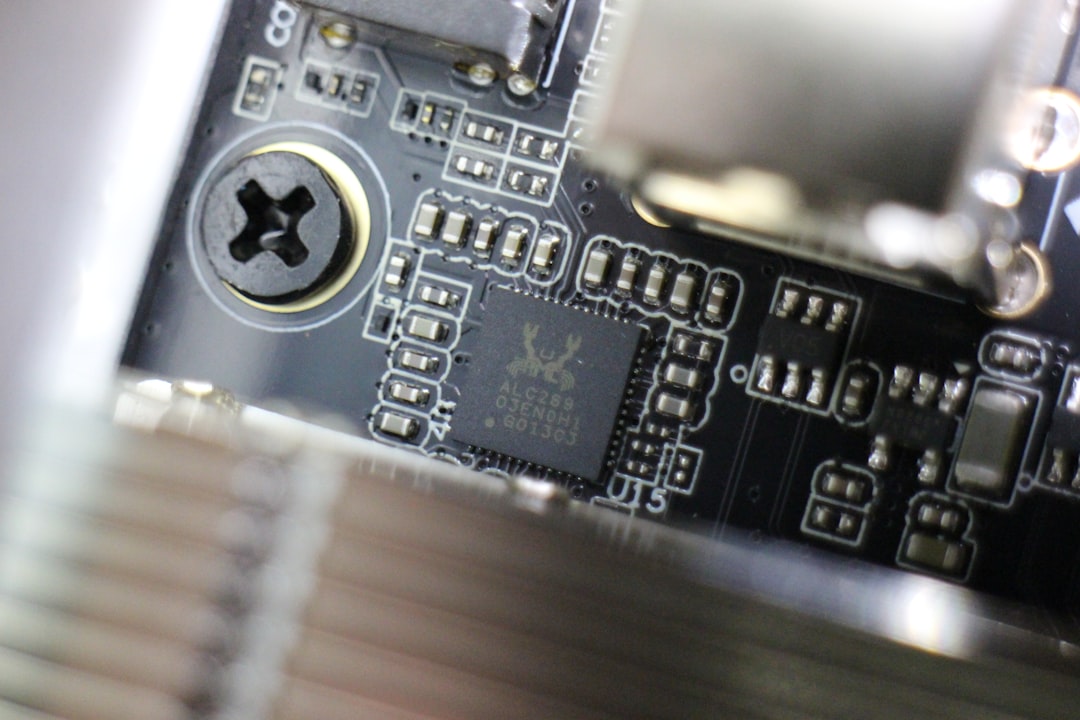
If you’re seeing errors in the Windows Event Viewer such as Event ID 27 (e1cexpress), then the culprit is likely the onboard Realtek NIC.
Common Causes of the Error
The following are the typical triggers that cause Realtek PCIe 2.5GbE disconnections:
- Outdated or unstable drivers: Realtek has made multiple revisions to its 2.5GbE drivers, and early versions were prone to bugs and instability.
- Interrupt conflicts: The NIC might clash with other PCIe devices, especially if not well handled by the system BIOS.
- Power management: Aggressive default settings can put the adapter to sleep under low activity, causing “phantom” disconnections.
- Auto-negotiation failures: Incompatibility at the port negotiation stage between your router/switch and the NIC may result in frequent drops.
How to Fix Realtek PCIe 2.5GbE Connection Drops
Luckily, most users can resolve the issue without replacing any hardware. Below is a structured list of proven fixes:
1. Update to the Latest Realtek Driver
Visit the Realtek website or your motherboard manufacturer’s support page. Make sure the driver version is at least 10.x.x.x or newer. Installation steps:
- Download the driver package (usually in ZIP or EXE format).
- Extract and run the setup.
- Reboot to apply changes.
Bonus Tip: Use Device Manager → Update Driver only if you’re unable to access drivers directly, as it may install an outdated version from Windows Update.
2. Disable Power Saving Features
To stop Windows from suspending your network adapter to save power:
- Go to Device Manager → Network adapters → Realtek 2.5GbE
- Right-click → Properties → Power Management tab
- Uncheck “Allow the computer to turn off this device to save power”
3. Turn Off Energy Efficient Ethernet
Within the same properties window under the Advanced tab:
- Find “Energy-Efficient Ethernet” and turn it off.
- Also disable Green Ethernet and Power Saving Mode if available.
4. Disable Interrupt Moderation & Other Offloads
Certain offload settings, particularly Receive Side Scaling and Large Send Offload, can interfere with performance on buggy drivers.
- Go to Device Manager → NIC Properties → Advanced tab
- Disable the following if they exist:
- Interrupt Moderation
- Large Send Offload (IPv4/IPv6)
- TCP Checksum Offload
Turning these off might increase CPU usage slightly, but stability generally improves.
5. Set Speed & Duplex Manually
Instead of letting the adapter auto-negotiate with the router or switch, set the speed manually:
- Navigate to NIC Properties → Advanced
- Select Speed & Duplex, and switch from Auto Negotiation to 2.5 Gbps Full Duplex or 1.0 Gbps Full Duplex as applicable
This setting mitigates issues where the auto-negotiation protocol causes connection instability on certain routers/switches.

Alternative Workarounds
If the steps above don’t completely eliminate the issue, try these additional fixes:
- Update motherboard BIOS: Vendors like ASUS, Gigabyte, and MSI have released patches aimed at improving PCIe lane handling and integrated NIC behavior.
- Use a different Ethernet port on your router: Some switch ports may have quirks or buffer issues that only affect 2.5Gbe adapters.
- Disable IPv6: In rare cases, Realtek NICs have conflicts with IPv6 traffic. Try disabling it on your network adapter settings as a test.
Still Having Issues? Consider a USB or PCIe Replacement
If the Realtek solution continues to be problematic, an alternative is to invest in a dedicated NIC. Several PCIe-based 2.5GbE cards from Intel or Aquantia provide better drivers and long-term support. If you don’t need ultra-high speeds, even a basic USB 3.0 gigabit adapter can offer rock-solid performance as a temporary fallback.
Final Thoughts
The Realtek PCIe 2.5GbE controller delivers excellent bandwidth on paper, but its real-world performance can be hit or miss due to software and firmware issues. This doesn’t mean it’s a defective product—in fact, once properly configured, many users report flawless operation.
By keeping drivers up-to-date, disabling problematic features, and optimizing your hardware setup, you can enjoy the benefits of high-speed Ethernet without the headaches. If problems persist, don’t hesitate to report bugs to your motherboard manufacturer or Realtek; your feedback can contribute to improved stability in future updates.
Enjoy a stable, blazing-fast connection—and leave those frustrating disconnects behind!